
The Google Tag and Tag Manager merge turns each Google tag into a Tag Manager container, according to Google’s November 17, 2026 announcement. Google says the upgrade preserves current in-page tag behavior. If your implementation is classified as unsupported, Google says your upgrade arrives in January 2027 and advises fixing your setup before then. The practical next step is to inventory how each tag is installed and follow one real business action from the site to GA4, Google Ads, and your CRM or order system. Google Tag Manager release notes
An upgrade can expose a measurement setup nobody has audited since the last redesign. A WordPress plugin might emit a lead event, a GTM form trigger might emit the same event, and Google Ads might treat both an imported GA4 event and its own tag as primary goals. Every dashboard can still look plausible. A controlled test makes the discrepancy visible before it gets blamed on the release.
What the Google Tag and Tag Manager merge changes
Sites using only a Google tag gain access to Tag Manager capabilities such as interface-based tagging, debugging, and version control. Google says existing destinations and automated-event triggers will be preserved. New deployment snippets will omit the legacy gtag config command, and Google recommends using initialization triggers to configure startup behavior. Tag Manager container permissions also govern access to information in Tag Assistant under the unified setup. Each team should check Google’s documentation and the actual account notice before making architectural changes. November 17 release notes
January 2027 applies to installations Google identifies as unsupported. It is a reason to inspect your setup now, especially if it uses unusual script sequencing or mixed implementations. The presence of both a GTM snippet and a Google tag on a page is a lead for investigation. You need to trace what each instance sends and which destinations receive it to understand whether your site duplicates anything.
Step 1. Build a tag and destination inventory
Start on the homepage, your main paid landing page, a lead form, and an order or confirmation page if you collect purchases. Include the host that owns checkout and any externally embedded scheduling flow. If your site uses client-side navigation, test a direct page load and an internal route change. On WordPress, look in the site theme, site kit or analytics plugins, header insertion tools, and the actual GTM workspace. A plugin may load scripts only on selected pages.
Use Tag Assistant to see firing order and trigger names. Record the tag IDs you can observe, including G- measurement IDs, AW- Google Ads destinations, GT- Google tag IDs, and GTM- container IDs. A Google tag may serve multiple destinations or be associated with several identifiers. Record each installation source, owner, destination, trigger, consent dependency, and expected event. Do not treat the raw number of IDs as the number of duplicated events.
| Setup | Inspect first | Common test to run |
|---|---|---|
| Hardcoded Google tag | Theme, plugin settings, embedded snippets, and associated destinations | Does the site send one event for one successful action? |
| GTM container | Published version, container workspace, tags, triggers, and data layer | Does the event fire only when its success condition happens? |
| Google tag and GTM | All deployment sources and the destination for each path | Do two paths emit the same event to the same destination? |
| Embedded forms or checkout | Parent page, embed, confirmation route, and integration | Can you tie one successful submit or order to one record? |
Record the currently published GTM version before deploying anything. Export it if access allows. Date your baseline and record test properties and environments. Keep implementation notes for scripts outside GTM, especially if a WordPress plugin owns the source. A GTM rollback cannot automatically reverse a change someone made in a site plugin.
Step 2. Choose one event and trace a real successful action
Open GTM preview or Tag Assistant, and open GA4 DebugView for the property you intend to test. Prepare an internal test lead or approved test purchase. Ensure the sales or operations team can identify it. Before you click anything, write down the expected event name, parameters, destination IDs, and the site, CRM, or order record that should result. Use the same form path a real prospect takes. Google Analytics DebugView
For a form, verify invalid submission, successful submission, reload of the confirmation state, and return navigation where relevant. A lead conversion should fire from a confirmed success condition. A click on a button can still be followed by a validation failure, network failure, or expired session. Make a successful test on mobile as well if the form uses a different widget or view. Then check one rejected state. If both actions count as a lead, start with the trigger.
For commerce, verify transaction ID, value, currency, and major required item fields on the expected purchase event. Reload the thank-you page and revisit it through browser history where your checkout allows that. Confirm how the analytics and ads paths deduplicate a replay and that a second real order would get its own distinct transaction ID. Avoid using one static ID for all purchases. Also test checkout through each materially different payment path so you can catch a payment provider redirect that loses the confirmation signal. Google Analytics ecommerce events
Worked example: One lead turns into two Google Ads conversions
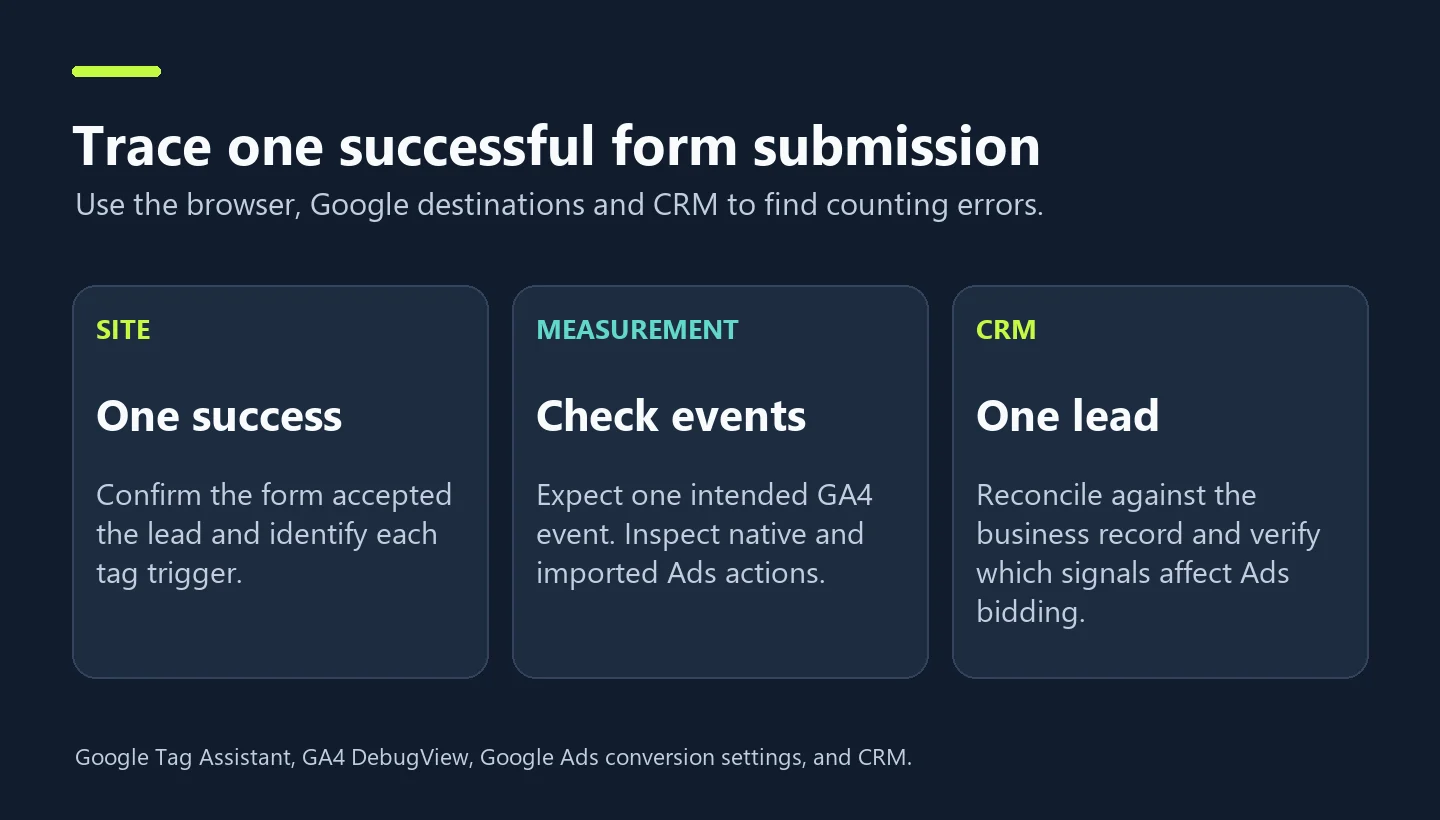
Imagine one successful quote form creates one CRM inquiry, one GA4 generate_lead event, and one native Google Ads conversion. A Google Ads import of that GA4 event also exists. Both conversion actions are primary and included in the campaign goal. The two Ads conversion paths can count the same underlying application when attribution criteria are met. The number of records in the CRM stays at one.
| Layer | Expected or observed | How to interpret it |
|---|---|---|
| CRM | One unique lead | One business event happened |
| GA4 DebugView | One generate_lead event | One event arrived in the test property |
| Google Ads conversion actions | One native action plus one imported action for the same event | The campaign can optimize against two representations if both actions are included |
| Campaign goal | Verify which actions are used for bidding | Pick a deliberate primary signal for the business action |
First identify the two action names, sources, and campaign goal assignment. Check whether they truly represent the same action and review how bids currently use them. Choose the signal the business wants to optimize against and test it before changing the goal. A secondary action can provide reporting during a comparison period, subject to how the goal is configured. Google documents a special treatment for secondary actions included in a custom goal, so use the actual campaign goal view to validate bidding behavior. Primary and secondary Google Ads conversion actions
A second common pattern starts upstream. A site plugin emits generate_lead at form success, and a GTM trigger sends another event to the same GA4 destination when the confirmation element appears. In DebugView, one submission yields two events. Review the event timeline in Tag Assistant to map each event to its trigger and choose the authoritative implementation. Preserve other functionality the plugin provides. The form integration may still own consent, CRM processing, or other analytics events you want to keep.
For a sense of scale, imagine $6,000 of ad spend and 60 actual leads. Reported CPA is $100 when each lead is counted once. If 15 of those leads are represented twice in the primary metric, the dashboard displays 75 conversions and a CPA of $80. The apparent 20% efficiency gain is entirely a denominator error. Mark the day you correct it to protect future comparisons.
Step 3. Verify consent, campaign attribution, and access
Test your consent management behavior using representative markets and both supported consent states. A consent denial can intentionally produce less observable event detail, depending on your configuration. Verify the site respects the current setting and updates correctly when a visitor changes that choice. Avoid forcing consent behavior just to make all your test results match.
Keep a check for query parameters and site navigation across domains. Your site may see a test lead even if a tracking parameter disappears on the way to an external checkout. Validate with the platform diagnostics and legitimate traffic over an appropriate delay. DebugView proves arrival in a debug session. Ads conversion credit depends on the account’s attribution and configuration. Record which check has passed and which needs actual attributed campaign activity to confirm.
Identify which employees and partners can use the relevant GTM container and Tag Assistant. Assign a clear publisher and reviewer. Ensure an authorized internal owner can keep the site measurable when an agency relationship or staffing role changes. The unification is a suitable moment to avoid relying on an inaccessible inherited container. Google Tag Manager release notes
Step 4. Compare production after the change
Before any implementation change, save seven to 28 days of lead or purchase volumes, key events by type, Ads conversion action metrics, and CRM or backend counts. Choose the window according to traffic and regular business cycles. After publishing, perform the same scripted tests in production and check stable traffic the following days. Group by device, landing page, and event type to expose template-specific failures. Keep an eye on CRM-to-GA4 and Ads-to-qualified-lead ratios as directional checks.
A simple release rule is one confirmed business action, one expected event per intended destination, a corresponding business record, and predictable behavior under approved consent states. An important exception is deliberate parallel reporting during a migration, where teams should know exactly which event is for observation and which powers bidding. If primary events stop or a purchase doubles, revert the most recent implementation change where safe, fix the owning layer, and test again with the same script.
Check the deployment paths most likely to get missed
Look at a real production page and the configuration that generates it. A template inspection alone can miss a consent tool that injects a tag at runtime. Tag Assistant alone can miss the plugin or theme location that owns the same tag. Write down both views. Include subdomains hosting careers, reservations, or payment if they participate in the conversion journey. Note if they send to a separate property by design.
For a site using a page builder, inventory the confirmation layouts. One form may reload into a thank-you page and another may confirm inline. A destination-based trigger can look correct on one page and miss the other. When a third-party scheduler creates the booking, test whether an approved integration or confirmation callback creates the corresponding measurement signal. The record should keep the same distinction between requests received, meetings reserved, and meetings held. Optimizing against a calendar view can train bidding toward people who never reserve anything.
Build a small test matrix with rows for each business event, each materially different form or checkout type, plus mobile and desktop. In each row, capture expected and observed success counts in the CRM, GA4 and the relevant Google Ads action. Include a failure test, a reload test, and the consent state. Add an owner and the date to review it. If you need to pick only two actions to test today, start with the action your highest-spend campaign bids against and the action executives use to read actual revenue.
Keep the matrix next to the deployment notes. A future auditor should be able to tell whether a screenshot showed one test for GA4 or a completed end-to-end review. Comparing verified tests against actual trends over several days gives you a better chance of catching a regression that only shows up for a subset of customers.
A staging test also needs a distinct destination plan. If approved, send test events to a test property or use a named debug segment and a clearly marked test record. Double-check that your production ads are not bidding on the test path. Once production is updated, repeat a small number of controlled tests on the real deployment. Document the endpoint, event timestamp, pass criteria, and where the team can find the underlying record. This makes a follow-up audit possible after preview-session history has expired.
Google tag migration FAQs
Do I need to remove my existing gtag config calls?
Google says current in-page behavior is preserved and describes updated snippets for new deployments. If Google flags your installation as unsupported, compare your implementation with the guidance linked from the release notes and test the exact change in staging before modifying production. Google tag unification release notes
How can I tell my Google Ads conversion is firing twice?
Run a confirmed action and inspect the relevant tags, then review the conversion action sources and campaign goals. Two firing tags can be valid when they send different intended measurements. An imported GA4 action and a native Ads action can still duplicate the bidding signal if both count the same action as primary.
Should I compare Ads conversions directly with CRM counts?
Use the CRM as the count of actual sales or inquiries. Document differences caused by conversion windows, source definitions, modeling, action configuration, and reporting lag. A sudden change in the ratio after a release warrants investigation. Fuel Online paid media management